Roblox voice chat too quiet? Find the right volume
If others struggle to hear you, check your microphone and changed-voice level. If you struggle to hear them, check incoming voice and headphone volume. Change one control, then compare the same sentence before turning anything else up.
Which side of Roblox voice chat is too quiet?
This guide is for Windows players whose voice chat is already connected and carries audible speech. If there is no microphone signal, no voice access, or no connection, use the Roblox voice and microphone troubleshooting guide first.
| What happens | Check next | What to keep unchanged |
|---|---|---|
| Other players hear you quietly | Your physical input and processed voice level | Your headphone listening volume |
| You hear every player quietly | Incoming voice controls, Roblox app output, and headphones | Your microphone gain |
| Only one person is quiet | That person’s volume control if shown, position, and their input | Other players’ already comfortable levels |
| Only soft syllables disappear | A recording comparison for missing words or processing | Global volume until you identify what disappears |
A louder local preview does not establish that another player hears a louder voice. Ask a willing participant who can normally hear you in the experience to describe the result, and keep a known working input available.
If other players sound too quiet to you
Check the available voice controls in the experience. If a global voice volume slider is shown, use it to adjust incoming speech. If just one player is quiet and a per-player volume adjustment is available, try that control before raising everyone else. Keep your microphone level unchanged during this listening test.
Roblox’s voice configuration reference documents conditions for built-in controls and support for custom controls. Use what your experience offers; a missing slider alone does not establish a microphone-driver fault.
If all Roblox audio is quiet, open Windows 11 Settings → System → Sound → Volume mixer while Roblox is running. Check its app volume and output device. Keep output on your real headphones. Microsoft’s app-audio troubleshooting confirms that app volume and output selection can differ from the system default.
If game effects are comfortable but bury speech, lower competing music or effects using separate experience controls where offered. Increasing the whole Roblox app raises its combined output; it does not selectively improve voice over game sound. Listen at a comfortable level rather than maximizing every slider.
If other players hear your microphone too quietly
- Keep the microphone at the position you normally use. Record a normal sentence, a softer sentence, and a louder reaction without moving closer between takes. Keep the listening volume fixed while comparing the saved samples.
- In Windows 11, open Settings → System → Sound → Input and select your physical microphone. Open its properties and use the microphone test with recorded playback where available. Check that you are testing the intended device, not a webcam or another headset.
- If the physical-input sample is too low, adjust its input volume by a small amount and repeat the same lines. If your microphone or interface has a gain control, note its starting position and change only one level control at a time.
- Stop raising the level if louder words become harsh, crunchy, or distorted. Return to the last clear setting. More level will not restore detail already lost in a distorted sample.
Microsoft’s microphone reference below documents the Windows input test and input-volume adjustment. Windows 10 has a different test interface. Changing the physical microphone level can also affect other apps that use it.
Balance your changed voice against the working input
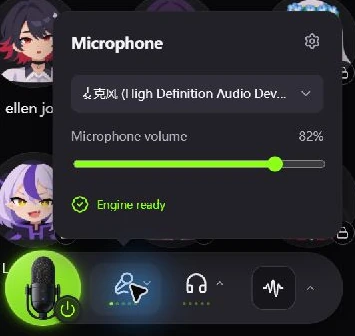
- In VoiceLala, keep the physical microphone selected. Compare the same lines in its preview with the voice you intend to use. Use the microphone volume control gradually if that stage is too quiet, then recheck the louder reaction.
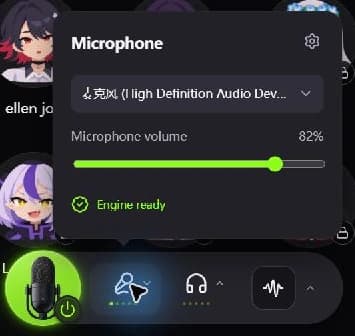
Open the microphone button in the bottom toolbar to choose your physical input. View full size - Repeat the comparison using another voice at the same physical input and listening level. Note whether the problem follows one voice choice or affects both. Do not compensate for a difficult-to-understand effect solely by making it louder.
- Check the VoiceLala virtual microphone in the Windows input test or a local recording app that explicitly selects that input. Keep VoiceLala running. Compare its recording with the physical-input sample at the same playback volume.
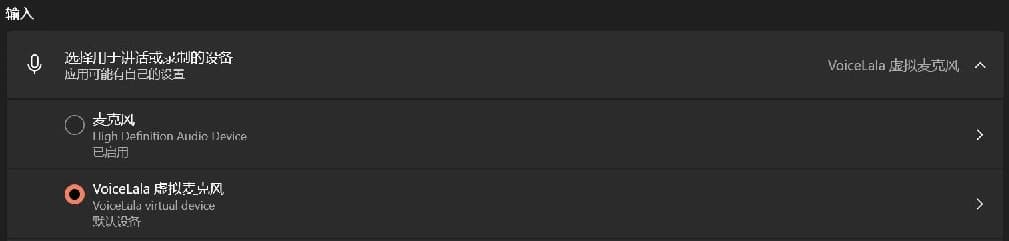
Under Windows Settings → System → Sound → Input, select the VoiceLaLa virtual microphone. View full size - Retest that virtual input in Roblox with your participant. Ask whether the normal sentence is clear, the softer line remains understandable, and the reaction stays free of obvious distortion. Record their result before another adjustment.
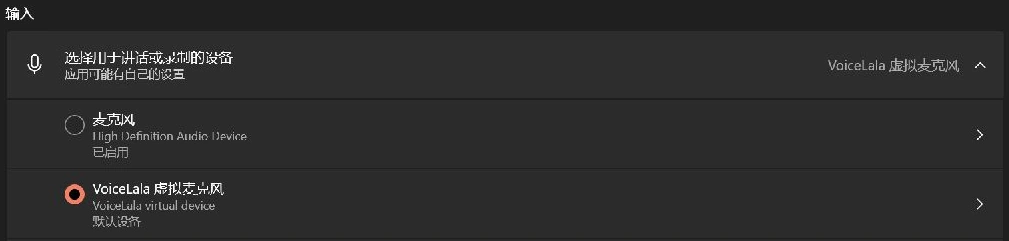
Use the existing virtual microphone guide if the processed input is missing or silent. This level comparison assumes the route is already working; it does not require reinstalling the driver or adding another voice-processing app.
Run a fair voice-volume comparison
Use the same participant, experience, voice, microphone position, and headphone level for the before-and-after test. Keep avatar and camera positions fixed initially. For experiences using positional voice, Roblox documents configurable distance attenuation; there is no single distance rule to apply to every experience.
Next, change only one condition: the selected input, a volume setting, the voice choice, or the relative position. Ask for a simple result such as “clear,” “still quiet,” or “louder but distorted.” If moving nearer changes audibility, record that observation before changing microphone gain.
| Comparison | Hold fixed | Record |
|---|---|---|
| Physical input before and after adjustment | Speaking position, lines, playback volume | Setting changed; clarity and distortion |
| Physical versus changed-voice recording | Speaking and listening level | Selected input and voice; which sample is quiet |
| Roblox recipient before and after | Participant, experience, positions | Who hears the problem; what improved |
| One person versus all players | Your microphone level | Relevant listening control; result |
If local samples are clear but one experience remains quiet, compare another voice-enabled experience with the same participant where possible. Different results narrow the next question; they do not prove that a particular update or device is defective.
Know when to stop increasing volume
A useful result is understandable conversation at a comfortable level, including soft words and louder reactions. Keep the last setting that improves that result. If a change only increases hiss, distortion, or the loudness of game effects, undo it and return to the appropriate branch above.
If neither participant can hear any voice, return to the connection and microphone checks. If the changed voice is missing from a recording, use the virtual microphone route. Account access, connection, and low-but-audible level are separate problems.
For a persistent experience-only issue, collect the experience name, Windows and Roblox versions, selected devices, the direction of the quiet audio, and your comparison results. Check Roblox Status for reported service issues and use Roblox support for Roblox-side problems. A clear status page does not rule out an individual experience issue.
Roblox voice volume FAQ
Should I set every microphone slider to 100%?
There is no universal setting for every microphone, interface, and voice effect. Adjust only the stage that is too low, then compare normal speech and louder reactions. Keep a setting that improves clarity, and reduce it if the sample becomes distorted.
Why does turning up VoiceLala not make other players louder?
VoiceLala’s microphone workflow supplies your outgoing changed voice. Incoming players are part of your listening path. Check the available Roblox voice controls, app output, and headphones for that problem; verify your outgoing level with a participant separately.
Why are voice volume controls missing in my experience?
Roblox’s built-in controls have availability conditions, and some experiences use custom controls. Use what the experience actually provides. If speech is completely unavailable, check eligibility and connection first rather than treating the missing slider as a microphone-level fault.
- Roblox: voice volume control availability and distance behavior
- Microsoft: microphone input testing and volume
- Microsoft: app volume and output device selection
- Roblox Status: reported service issues