Avatar identity
Choose an original voice direction that matches the character shape, energy, and social role.
Choose a voice direction that supports the avatar, route it into VRChat on a Windows PC, and tune the microphone before entering a social world.
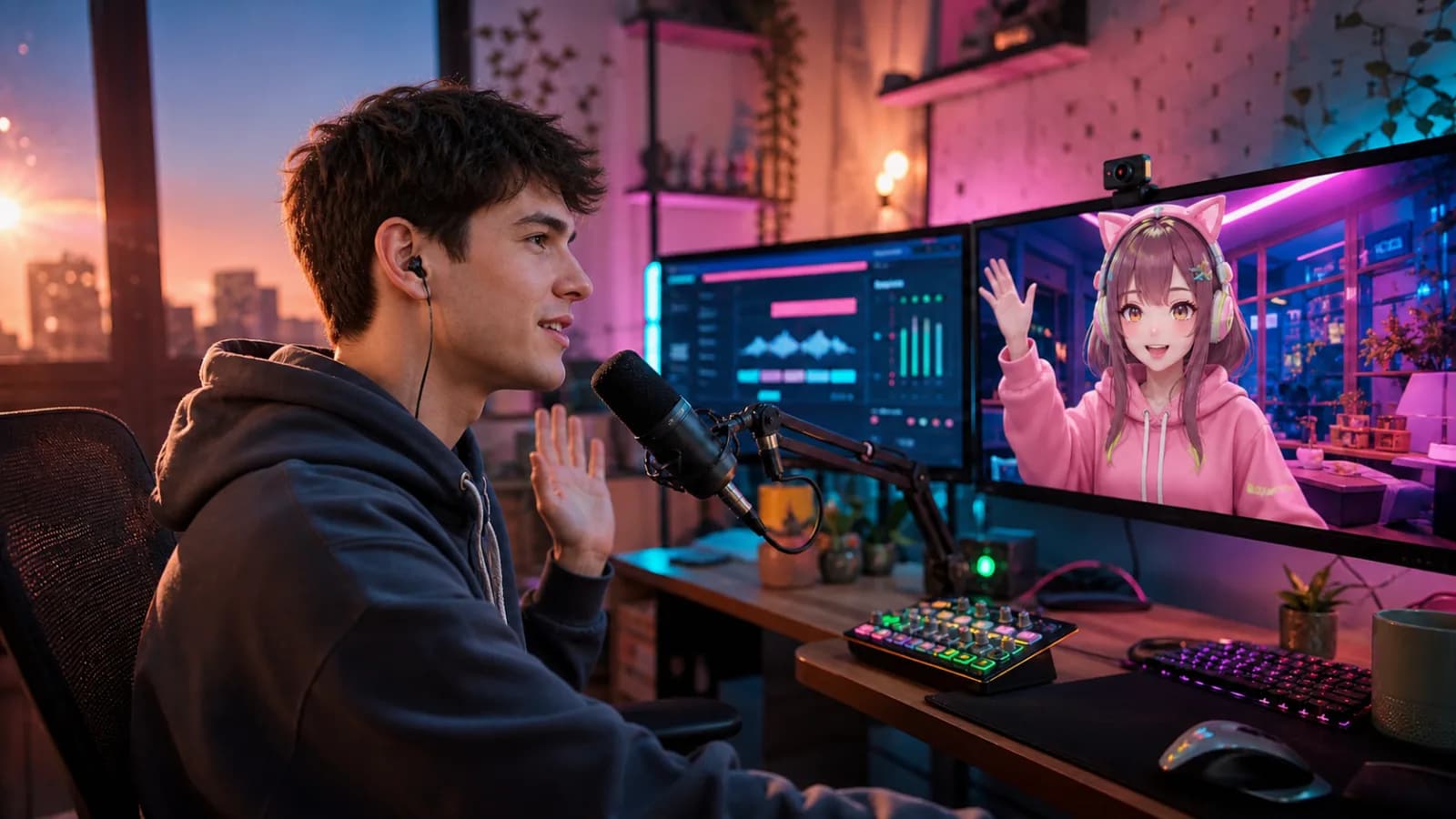
The strongest roleplay voices stay expressive through normal conversation instead of relying on one exaggerated pitch trick.
Choose an original voice direction that matches the character shape, energy, and social role.
Speak through the virtual microphone during conversations, events, and PC VR roleplay.
Send the same voice into VRChat and streaming software for a consistent on-screen character.
Connect the physical microphone to VoiceLala and preview a voice at the volume you use during normal conversation.
Set VoiceLala Virtual Mic as the Windows input for the session.
Open VRChat audio and voice settings on the PC client, then choose the same virtual microphone.
Enter a quiet world or private instance, test speech and avatar movement, and adjust gain before a public session.
This workflow targets the Windows PC client and PC VR. Standalone headset routing can use a different audio path and is not currently promised by VoiceLala.
A voice that sounds impressive for ten seconds can become tiring after an hour. Test full sentences, laughter, and quieter speech before committing to a character.
The documented workflow is for Windows PC and PC VR through a virtual microphone. Standalone headset support is not currently promised.
Compare the physical mic, virtual mic, and app sample rates, then reduce competing noise suppression or effects one at a time.
Yes. Browse original directions on the anime voice changer page and choose one that remains clear in live conversation.
Join the Windows waitlist, preview several directions, and test full conversations before entering a public world.