Repeatable personas
Keep recognizable voice presets for gameplay, reactions, characters, and community segments.
Use one real-time AI voice across stream scenes, game chat, and community moments while OBS captures the VoiceLala virtual microphone.
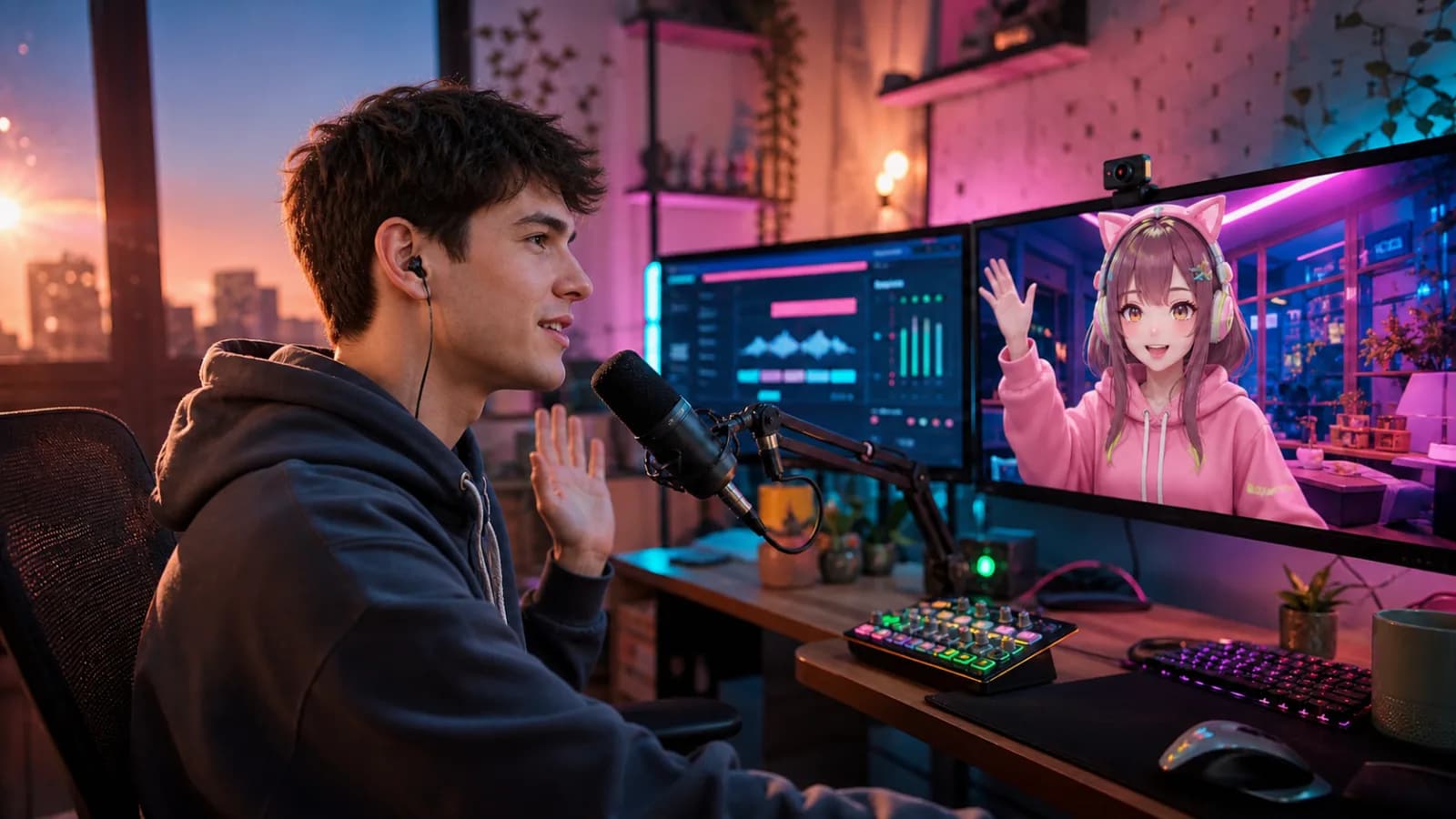
A Twitch voice changer works best as part of the show format, with predictable voices and effects instead of random switches every thirty seconds.
Keep recognizable voice presets for gameplay, reactions, characters, and community segments.
Capture the virtual microphone once, then reuse it across the scenes that need the changed voice.
Place a small set of soundboard moments near your stream controls for deliberate timing.
Choose a VoiceLala voice and speak through several full sentences to confirm it fits the stream persona.
Add VoiceLala Virtual Mic to OBS or your selected broadcasting application as the microphone input.
Check monitoring and record a private sample with game audio, alerts, music, and the soundboard active.
Set comfortable levels, save the scene or profile, and keep a neutral fallback ready before going live.
Twitch receives the audio sent by your broadcasting software. Configure the virtual microphone in OBS or the app that actually sends the stream.
Consistency helps a character land. Use one primary voice, one backup, and a short soundboard instead of making every stream a preset scavenger hunt.
Usually the microphone is selected in OBS or another broadcasting application. Twitch receives the mixed stream output from that software.
Yes, when both are routed into the broadcast mix. Test relative levels so a reaction clip does not bury your commentary.
Disable the raw microphone source and keep only VoiceLala Virtual Mic in the mix. The OBS guide covers the common duplicate-source checks.
Join the Windows waitlist, build a small preset set, and test the complete broadcast mix before going live.