Dedicated audio input
Add VoiceLala Virtual Mic as an Audio Input Capture source and adjust it independently.
Capture VoiceLala Virtual Mic as an OBS audio input, keep the raw microphone out of the mix, and test the changed voice before recording or streaming.
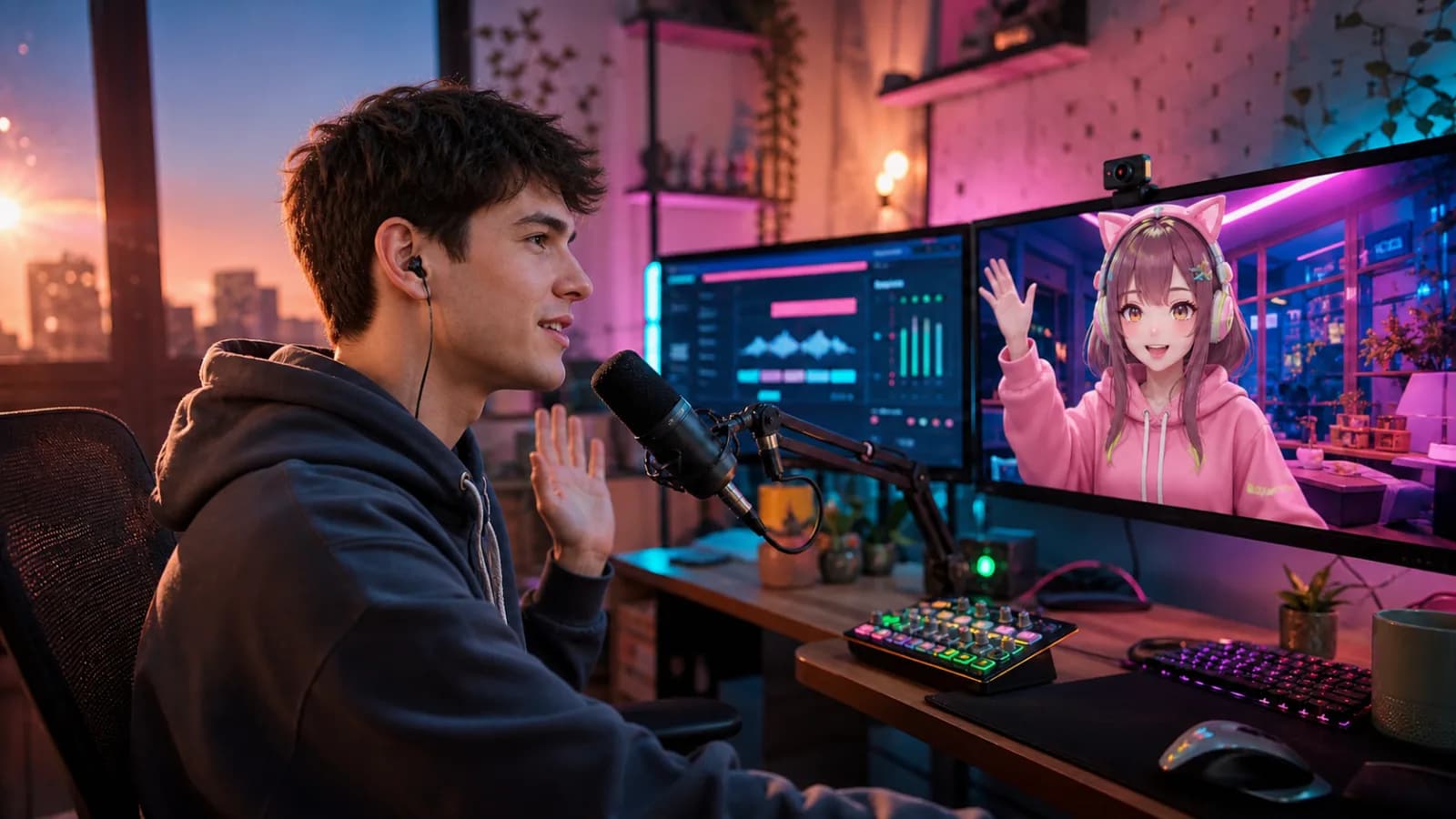
A clean OBS scene gives the changed voice one predictable input, one meter, and fewer opportunities for echo to sneak on stage.
Add VoiceLala Virtual Mic as an Audio Input Capture source and adjust it independently.
Keep a consistent live voice for gameplay, VTuber scenes, interviews, and creator segments.
Route reactions and effects through the same creator workflow without adding a pile of duplicate sources.
Open VoiceLala, select your physical microphone, and choose the live voice you want to capture.
In OBS, add or open an Audio Input Capture source for the scene.
Choose VoiceLala Virtual Mic as that source and mute any duplicate raw-microphone source.
Record a short local test, check meters and monitoring, then balance voice, game audio, music, and soundboard levels.
OBS layouts and source names can vary by version and operating system. The key is one active VoiceLala virtual-mic source with no duplicate raw input.
Most doubled voices come from capturing both the physical microphone and the virtual microphone, or from monitoring audio back into the same input path.
Add VoiceLala Virtual Mic as an audio input source because OBS should receive it like a microphone.
Look for a second microphone in Global Audio Devices, the current scene, nested scenes, or another capture application. Keep only the intended virtual microphone in the final mix.
Streamlabs and similar tools also accept microphone devices. Select the VoiceLala virtual microphone and run a private recording test because menus and monitoring behavior differ.
Join the VoiceLala waitlist and prepare one clean virtual-microphone source for your next recording or stream.