Roblox voice chat not working? Check the mic route
First separate a missing voice feature from a silent microphone. Check Roblox access and connection, then compare your physical mic, VoiceLala preview, and Windows virtual input before testing with another player.
Choose the branch that matches your Roblox voice problem
This guide is for Roblox on Windows. Start with the symptom you can observe; a missing voice control and a connected microphone that sends silence need different checks. Use headphones and a short ordinary sentence for each comparison.
| What you observe | Check first | Continue when |
|---|---|---|
| No voice connection control in the experience | Account eligibility, region, and experience support | Roblox offers voice access for this session |
| Voice is disconnected or your mic is muted | The experience’s connection and microphone controls | You have connected and unmuted intentionally |
| The physical mic fails outside Roblox too | Device connection, mute, Windows permission, and input test | A physical-input sample is audible |
| VoiceLala preview works, but virtual-input playback is silent | VoiceLala’s physical input and virtual microphone status | The selected Windows virtual input carries your changed voice |
| Virtual-input playback works, but Roblox sends silence or your normal voice | Roblox’s selected input, session state, and a recipient comparison | Another participant confirms the intended voice |
If the Roblox voice button is missing
Check Roblox’s current voice activation instructions. Eligible users aged 13 or older need an age check through ID verification or facial age estimation. Availability and verification methods can vary by account and region; phone-number verification alone no longer grants voice access.
Check the experience description for voice support. Where available, connect through the headphone icon or the experience settings. Once connected, check the separate microphone mute control. Roblox’s Voice FAQ describes a red slash for mute and an animated green microphone graphic during speech.
If access remains unavailable, stop at this branch and use Roblox’s help process. VoiceLala cannot unlock voice chat or bypass age, regional, account, or moderation restrictions. Installing an audio driver will not establish account eligibility.
Check Windows permission and the physical microphone
- Check the headset’s physical mute control and cable or wireless connection. Close the Roblox session while making the baseline comparison, and note your current Windows input so you can restore it afterward.
- In Windows 11, open Settings → Privacy & security → Microphone. Review Microphone access, Let apps access your microphone, and Let desktop apps access your microphone. If your Roblox installation appears in the app list, review its permission too; a desktop app may not have an individual switch.
- Open Settings → System → Sound → Input and select your physical microphone. Open its properties and use Start test, speak, then Stop test and Play where those controls are offered. Check the input response as well as the playback.
- If this physical-input sample is silent, keep troubleshooting the microphone and Windows before adding voice effects. If it is audible, keep the same speaking position and move on to the changed-voice comparison.
Microsoft’s permission and input-test references are linked below. On Windows 10, microphone permissions are under Settings → Privacy → Microphone; its input test interface differs.
Test the changed voice before reopening Roblox
- Open VoiceLala and select the same physical microphone as its input. Keep your real headphones as the listening output. Do not select the VoiceLala virtual microphone as the app’s own physical input.
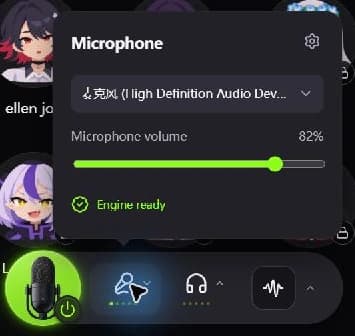
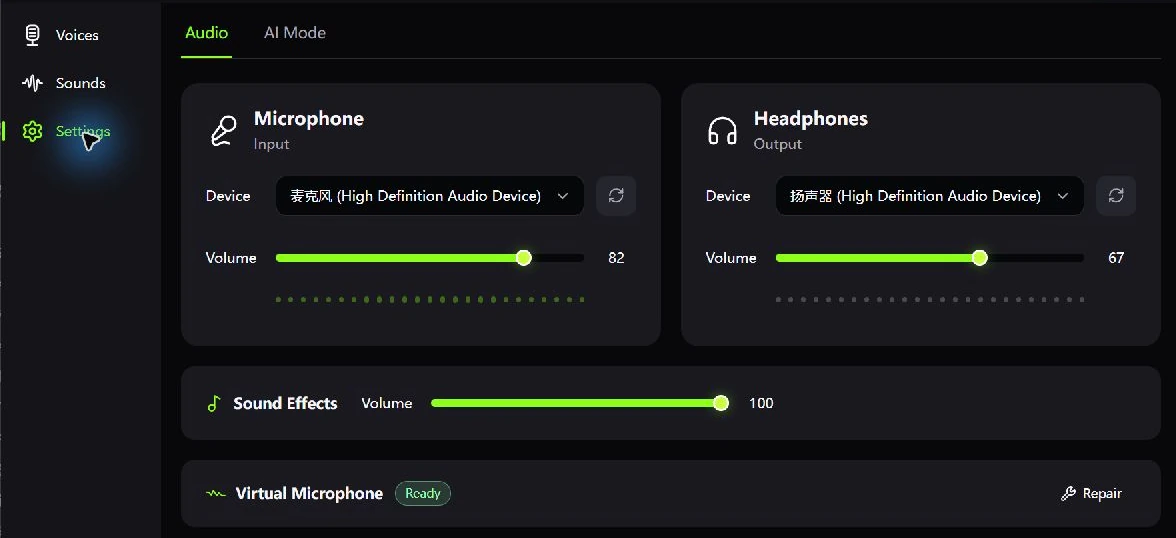
Open the microphone button in the bottom toolbar to choose your physical input. View full size - Check Settings → Audio for the virtual microphone status. Choose your intended voice and listen to the preview. If the preview is silent or unintelligible, resolve that first rather than changing Roblox settings.
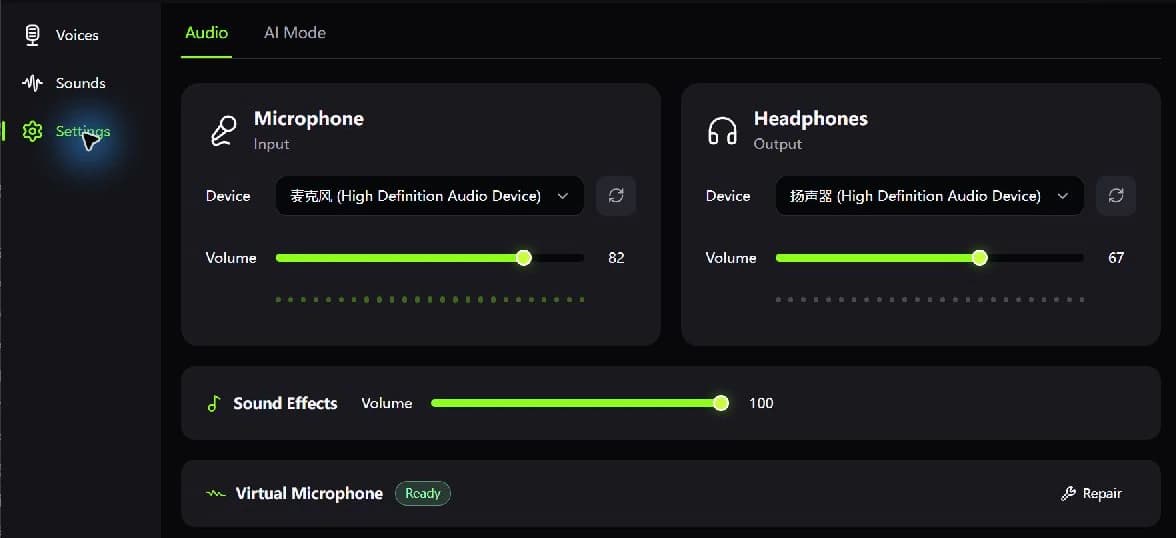
Open Settings → Audio to check your input and the virtual microphone status. View full size - In Windows Sound → Input, select the VoiceLala virtual microphone and repeat the available microphone test. Leave VoiceLala running. Listen for the changed voice, rather than accepting meter movement alone as success.
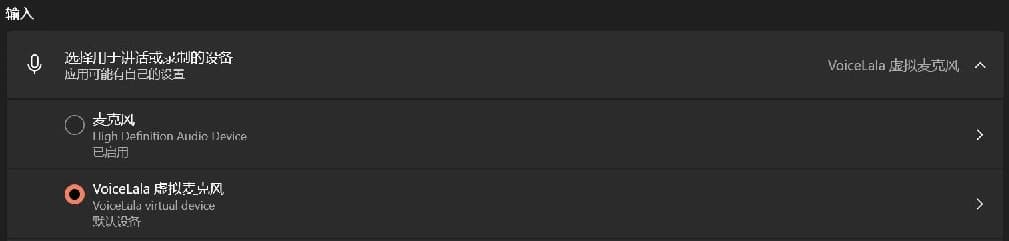
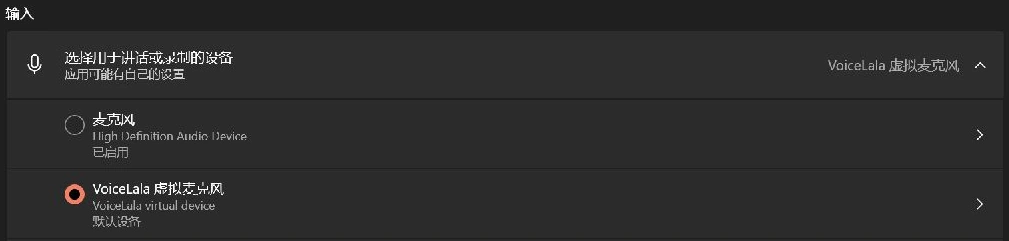
Under Windows Settings → System → Sound → Input, select the VoiceLaLa virtual microphone. View full size - If Windows offers no playback for that device, use a local recording app that lets you explicitly select the virtual input. Confirm the selected device before recording; a sample from your physical mic does not test the virtual route.
- Reopen Roblox with VoiceLala still running. If Roblox offers an input selector, choose the same virtual microphone. If it follows the system default, keep the virtual microphone selected in Windows for this comparison. Keep game output on your real headphones.
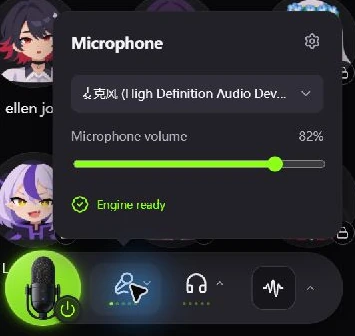
Changing the Windows default can affect other apps; restore your preferred input after the test. A clear VoiceLala preview alone does not prove that Roblox receives the processed audio.
Confirm the result in a voice-enabled experience
Join an experience that offers voice, connect, and check that your microphone is unmuted. With a willing participant who can normally hear you in that experience, compare one short sentence using your physical input, then the same sentence using the virtual input. Reconnect or reopen Roblox after changing devices if the selection does not take effect.
Ask whether each sentence is audible and whether the second has the intended changed voice. Hearing other players tests the listening side; a moving speaking indicator does not establish what they hear. If your normal voice arrives during the virtual-input test, recheck the selected device before increasing volume.
| Comparison | Write down |
|---|---|
| Physical input in Windows | Selected device; audible, silent, or distorted |
| VoiceLala preview | Physical input; selected voice; what you hear |
| Virtual input in Windows | Selected device; changed voice, normal voice, or silence |
| Roblox recipient comparison | Experience; connection/mute state; result for each input |
If the physical input works in Roblox but the virtual input does not, focus on the processed route. If both work locally but neither reaches Roblox, record that distinction and investigate the Roblox session or service. Neither result identifies a universal fix by itself.
Keep a working baseline and ask for targeted help
If the problem remains, return to the last working input rather than stacking unrelated changes. Avoid a blanket volume boost when the sample is already distorted. A new voice choice, device change, or session restart should each be followed by the same short comparison.
For help, collect your Windows, Roblox, and VoiceLala versions, the experience name, the selected physical and virtual device names, and the first failed row of the worksheet. Include an exact error message and whether the issue occurs in another voice-enabled experience. Share only the relevant settings, with account details hidden.
Use Roblox support for missing access or session errors. For a virtual microphone that is absent or silent, start with the VoiceLala routing checks. Once the path works, return to the Roblox voice setup and test your chosen character voice at a comfortable level.
Roblox microphone troubleshooting FAQ
Why can I hear players but they cannot hear me?
Incoming sound and outgoing speech follow different paths. Check connection and mute state, microphone permission, and the selected input. Compare physical and virtual input playback before the recipient test. Hearing other players alone does not verify your microphone.
Why does Roblox hear my normal voice instead of VoiceLala?
Check whether Roblox is using the physical microphone or another default input. Confirm that Windows receives the changed voice from the selected virtual microphone, keep VoiceLala open, then select that input in Roblox where available and repeat the session test.
Will this Windows setup change my voice on Roblox mobile?
This procedure uses a Windows virtual microphone. VoiceLala does not promise direct phone or console microphone routing through this setup. Treat another device as a separate workflow, with its own Roblox voice availability and audio input requirements.
- Roblox: current voice activation and age-check requirements
- Roblox: experience support, connection and microphone controls
- Microsoft: microphone access for Windows apps
- Microsoft: microphone selection, testing and troubleshooting