Roblox Bluetooth audio muffled? Check what changes with voice chat
If your headphones sound clear until voice chat opens, compare playback with voice disconnected and connected. A Bluetooth call-mode change is one possible cause; the right next test depends on your Windows device and microphone route.
Separate muffled playback from a quiet microphone
This guide covers Roblox on Windows with Bluetooth headphones or earbuds. Keep the listening volume comfortable. First decide whether the game sounds different in your headphones or another player hears a poor microphone signal.
| What changes | Compare first | Next step |
|---|---|---|
| Game audio becomes thin or muffled when voice opens | The same headphones with voice disconnected and connected | Check the Bluetooth and microphone branches below. |
| You hear clearly, but another player hears a muffled voice | Physical mic, changed-voice sample, then recipient | Find the first poor sample before changing playback. |
| Audio stays clear but is too quiet | Incoming voice versus outgoing microphone level | Use the separate volume guide. |
| Audio is poor even outside Roblox with voice closed | The headphones in another app | Investigate the Windows or headset path first. |
For clear but faint speech, follow Roblox voice volume checks. If voice is missing entirely, start with voice access and microphone troubleshooting.
Compare voice disconnected and connected
- Note your headset, Windows version, selected microphone, and listening output. Close other calls and microphone previews for the baseline; leave the headphone volume unchanged.
- In the same Roblox experience, listen to a repeatable game sound with voice disconnected. Use the experience’s Voice Chat connection control where available; muting your microphone is a separate action.
- Connect to voice and listen to that sound again. Note whether it becomes muffled immediately, only after another app opens, or not at all. Avoid changing voice effects and output volume during this comparison.
- Disconnect from voice and compare once more. If the sound remains poor, close Roblox and any app still using the headset microphone, then check another playback app. Record whether quality returns.
- If you already have wired or USB headphones, repeat the comparison with that output. A different result narrows the audio path; it does not by itself identify a Roblox bug or a faulty headset.
Roblox documents connecting and disconnecting through in-experience voice controls. Availability depends on the account and experience. This comparison is a diagnostic procedure, not a report of a hardware test performed by VoiceLala.
Why Bluetooth audio can change during voice chat
With Bluetooth Classic Audio, A2DP provides stereo playback, while HFP supports a microphone and mono playback together. Windows can switch to HFP when the headset microphone opens. On Windows 11, a communications-category playback stream can also trigger that switch, so a separate microphone does not guarantee stereo playback in every app.
Windows 11 may show one unified headphone output instead of separate Stereo and Hands-Free entries. Selecting the same visible output again does not prove that its Bluetooth mode changed. See Microsoft’s Bluetooth Classic Audio explanation.
Use the connected/disconnected comparison to test this possibility. If the sound never changes with voice or microphone use, keep other causes open. Raising volume cannot restore detail lost in a lower-quality audio path.
Keep the headset for listening and try a separate mic
- If you already have a built-in, USB, or wired microphone, test it as the physical input. Keep the Bluetooth headphones as the output. Record the original selections so you can restore them.
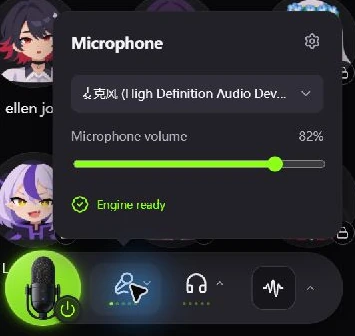
- In VoiceLala, explicitly choose that separate physical microphone in the input menu. Selecting a virtual input only in Roblox will not help if VoiceLala itself still opens the Bluetooth headset mic.
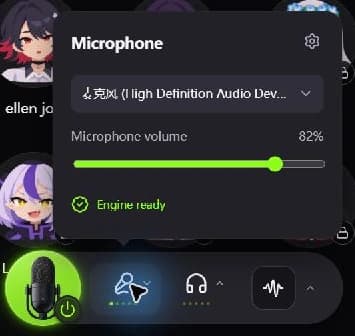
Open the microphone button in the bottom toolbar to choose your physical input. View full size - Make a short physical-mic recording, then compare the VoiceLala preview using the same sentence. If the physical sample is already muffled, investigate that input first. If only the changed voice is unclear, compare another voice at the same level.
- Keep VoiceLala running and select its virtual microphone in Roblox if an input selector is offered. If Roblox follows Windows’ default, select the virtual input there for this test. Leave game playback on your real headphones.
- Reconnect to voice and repeat the same game-sound comparison. Ask another participant to confirm your changed voice too. If playback remains muffled, note the result and check LE Audio support or an alternative output rather than repeatedly switching the same input.
Close other apps still accessing the Bluetooth microphone. Restore any Windows default changed for the test afterward. VoiceLala supplies a changed microphone signal; it does not add Bluetooth hardware support or remove a headset’s transport limits.
Check the Windows 11 LE Audio branch
LE Audio is a different Bluetooth path. Microsoft documents improved call playback and, on supported setups, stereo while the microphone is active. Both the PC and headset must support it; a Bluetooth version number alone is insufficient.
In Settings → Bluetooth & devices → Devices, look for Use LE Audio when available. Microsoft says a missing setting can reflect unsupported hardware or drivers. Check the headset’s specifications as well.
For stereo with the mic active, Microsoft specifies Windows 11 24H2 or newer, build 26100.4484 or newer, and compatible manufacturer hardware and drivers. On an eligible connected device, open Settings → System → Sound → your Bluetooth output → Output settings → Format. Check Format when microphone is active if shown.
If stereo causes loss of audio or glitches, Microsoft suggests trying mono for compatibility. Follow its LE Audio format instructions. Record the original setting and retest; missing controls do not mean you missed a Roblox menu.
Keep a working route and record the trade-off
Keep the combination that passes both listening and outgoing-voice checks. If you only have a Classic Bluetooth headset mic, accepting its call quality may be the practical choice. Compare a wired or USB route if one is already available; buying equipment is not required to run the tests.
| Test | Write down | Result to compare |
|---|---|---|
| Voice disconnected → connected → disconnected | Experience, output, other mic apps | When playback changes and recovers |
| Headset mic → separate physical mic | Windows and VoiceLala input names | Playback clarity and recipient’s voice check |
| Eligible LE Audio setting or another output | Original setting, device, single change | Clear speech, stable playback, remaining glitches |
Disabling a headset’s Hands-Free service can remove its microphone path and affect other calls. Do not make that the first step if you still need the mic. If an earlier tutorial disabled it, note that change when checking why the microphone disappeared.
For a persistent issue, keep your device models, exact Windows build, Roblox version, experience, and comparison results together. Use the virtual microphone guide if the changed voice stops reaching Roblox. A useful endpoint is clear enough game playback and a confirmed outgoing voice, with any remaining quality limit understood.
Roblox Bluetooth audio FAQ
Why does muting my Roblox mic not restore headphone quality?
Mute and disconnect control different things. An app may still hold the microphone open, or a communications playback stream may keep a Classic Bluetooth device in HFP. Compare with voice disconnected and other mic apps closed before concluding that mute should restore the previous sound.
Can I keep using the Bluetooth headset microphone?
Yes, if Windows and the app expose a working input. Classic Bluetooth has a quality trade-off during two-way audio. Test whether it meets your needs; a separate mic is an option to compare, not a requirement or a guaranteed fix.
Does this fix Bluetooth audio on Roblox mobile?
These steps target Windows. Windows device menus and VoiceLala’s desktop virtual microphone workflow do not establish a mobile setup. Use device-specific support for Android or iOS rather than applying PC driver or service instructions to a phone.
- Microsoft: Bluetooth Classic profiles and Windows switching conditions
- Microsoft: audio format behavior during communications
- Microsoft: check PC and headset LE Audio support
- Microsoft: configure LE Audio playback with an active microphone
- Roblox: voice connection and microphone mute controls