Find the source of Roblox voice chat echo
First ask who hears the repeat. If only you hear it, compare with Roblox voice disconnected and check local monitoring. If a friend hears their own words back, test whether your setup is sending their audio into your mic.
Identify whose voice comes back
Use this guide for audible repeats or unwanted self-monitoring in Roblox on Windows. Pick a voice-enabled experience and a willing test partner. Keep soundboard cues off during the test so you can identify each spoken line.
| Observation | First comparison | What to inspect |
|---|---|---|
| You hear your own voice immediately | Speak with voice disconnected while using a local mic test. | Headset sidetone and app monitoring. |
| You hear a delayed copy of yourself | Test outside Roblox, then reconnect with one partner. | Local playback if it persists, or the listening path if it starts in the session. |
| A friend hears their words come back | Briefly mute your mic while your friend repeats a line. | Your speakers or another capture route if the repeat stops. |
| A friend hears your sentence twice | Compare a recording of the selected input with your friend’s report. | The first point at which the sentence doubles. |
Delay is a clue. Ask your partner whether the second sound is a copy of their speech or yours before changing a setting. For missing speech, start with Roblox voice connection checks.
Compare local monitoring with voice disconnected
- Note your physical mic, Windows input, headphones, and whether VoiceLala is open. Keep volume comfortable. Disconnect through the in-experience voice controls, or exit the experience for the baseline.
- With VoiceLala open if you use it, verify its physical mic selection. Speak a short line with any local voice preview off, then repeat with the app closed if the unwanted playback continues. Closing the app is only for the local baseline.
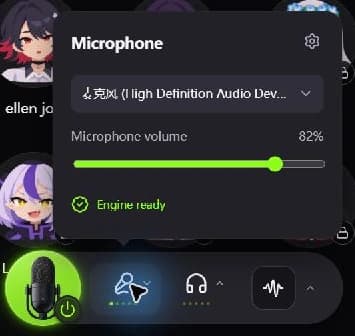
Open the microphone button in the bottom toolbar to choose your physical input. View full size - If the headset only plays your voice while a mic is active, repeat with a Windows microphone test while Roblox is closed. Compare what you hear during speaking with the saved sample played afterward.
- If the headset plays your voice immediately, check its manual or companion app for a sidetone or mic-monitoring control. Change one level or toggle, retest, and restore it if it does not help.
- If a delayed copy remains, inspect Windows Sound → More sound settings or the classic Sound control panel. Under Recording, open Properties for the input you are using. If the Listen tab is present and Listen to this device is enabled unexpectedly, clear it and retest.
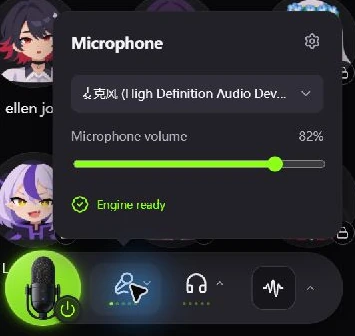
Some controls depend on the device. Record the original value before changing it. Reopen VoiceLala before testing its virtual input in Roblox.
Test for audio returning from the other side
Reconnect in the same experience with your partner. Say “my test,” then have them say “your test.” Take turns so it is clear whose line repeats. If you hear your own line returned, ask your partner to mute their microphone briefly and repeat your test. If the repeat stops, inspect the partner’s outgoing audio path together.
If your partner hears their own line returned, briefly mute your microphone while they speak. If the repeat stops, switch your playback from speakers to headphones, silence any second device in the same voice session, and confirm the input is the intended mic. Unmute and repeat the same line. A mute result narrows the route and still leaves several possible causes.
Roblox also documents a speaker icon for muting another user’s voice where that control appears. You can use it as a short receiving-side comparison. Restore your test partner’s audio after the check.
Check for doubled speech in the virtual microphone
- Make one short local recording with the physical microphone selected. Play it back after you stop speaking. Write down whether it contains one clear line, a duplicate, or room reverberation.
- With VoiceLala running, make another sample using its virtual microphone as the selected recording input. Use the same line with a simple voice effect and the same listening volume. Select that device explicitly in the recorder or Windows input test.
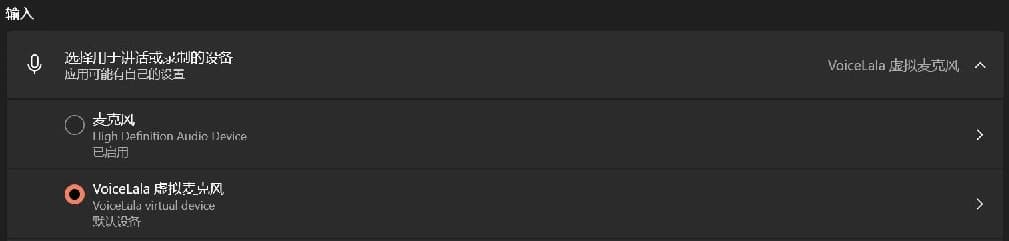
Under Windows Settings → System → Sound → Input, select the VoiceLaLa virtual microphone. View full size - If the second sample doubles but the first is clear, review the apps processing or monitoring that route. Close an unnecessary audio app or disable one preview at a time, then retest with the same recorder input.
- If both recordings sound clear, ask the same Roblox partner to listen again using the working virtual input. Keep your voice effect, player positions, and output device stable while changing one condition.
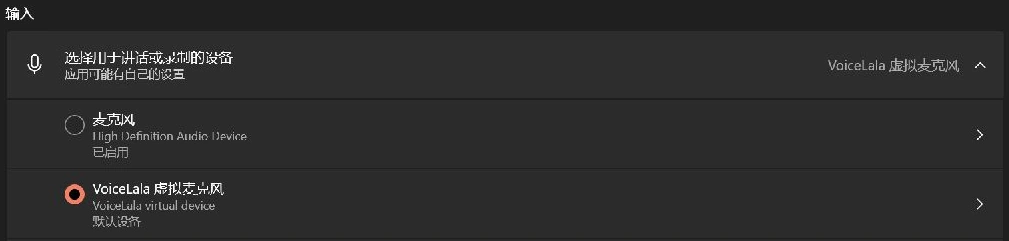
Use the Windows recording test controls where offered, or a recorder that lets you choose the input. Avoid changing every app’s microphone settings based on one experience.
Check whether it follows one Roblox experience
If the same voice route sounds normal elsewhere, compare a second voice-enabled experience with the same partner and devices. Roblox creators can configure their experience’s audio routing. An experience-specific result helps narrow the report, but it cannot identify the exact configuration from the player side.
Keep a short note of the experience, audio devices, who hears the repeat, and what happens when one person mutes. Include the Windows and Roblox versions if you report the issue. If the entire game instead sounds thin when the headset mic opens, run the Bluetooth playback comparison.
Confirm a clear call after each change
Retest with both microphones unmuted. Each person should hear one intelligible sentence from the other. Confirm the changed voice still arrives if you use one, then keep the settings that improved the test. Restore any temporary Windows default you changed for the comparison.
Keep a local preview available when you need to audition a voice. During play, you can turn off an unnecessary listening path and use a partner or recording to check the outgoing signal. Revisit virtual microphone setup if the destination no longer receives the intended input.
Roblox voice chat echo FAQ
Can I hear myself even when Roblox voice is disconnected?
Yes. Headset sidetone, Windows listening, or an app preview can play your mic locally. Compare with Roblox closed while a local microphone test is active, then inspect those paths one at a time.
Will lowering mic gain fix the echo?
Reducing gain can lower a sound already entering the mic. To find the source, check who hears the repeat, use headphones, and compare recordings or mute tests before adjusting gain.
Why does it happen in only one Roblox experience?
The experience or its voice session may be involved. Compare a second experience with the same listener, devices, and voice effect. Record the difference and share it with the appropriate support channel if it persists.
- Roblox: voice connection and microphone controls
- Roblox: voice mute and session controls
- Roblox Creator Hub: audio routing in experiences
- Microsoft: set up and test microphones in Windows
- Shokz: headset sidetone and Windows microphone listening