OBS mic cutting out? Find where words disappear
Make a local recording with noise cleanup bypassed, then restore filters one at a time. Compare it with your VoiceLala headphone preview to find where speech starts getting cut off.
Start with the voice you actually use
This guide is for Windows creators whose microphone reaches OBS but loses syllables, quiet words, laughter, or higher notes. If OBS receives no signal at all, start with the OBS voice changer setup instead.
Use headphones, stop the live stream, and keep the same microphone position, input level, and VoiceLala voice throughout the comparison. Save your current filter settings before changing anything. Leave game and music sources quiet so you can hear the affected speech clearly.
Check the changed voice in VoiceLala first. A clear preview is useful, but you still need a saved OBS recording: the virtual microphone, OBS capture, and recording output are additional parts of the route.
Isolate an OBS mic cutting out
- In OBS, identify the Audio Input Capture source that receives the VoiceLala virtual microphone. Keep one capture route for that device; do not add your raw microphone to the broadcast mix for this test.
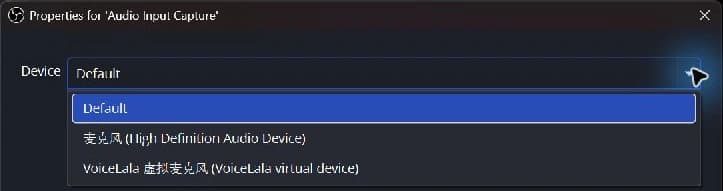
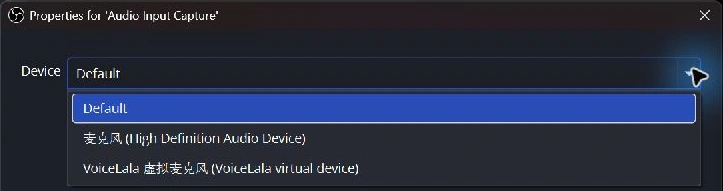
Choose the VoiceLaLa virtual microphone in the Device menu. View full size - Open Filters for that voice source. Temporarily bypass its Noise Suppression, Noise Gate, and Expander filters using their enable controls. If you use a third-party noise-cleanup filter, bypass that too. Preserve the settings so you can restore them.
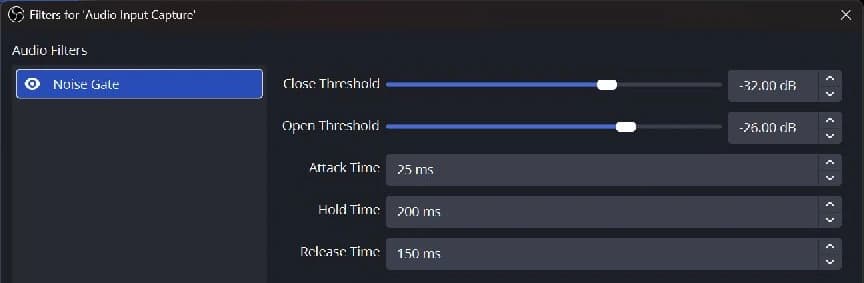
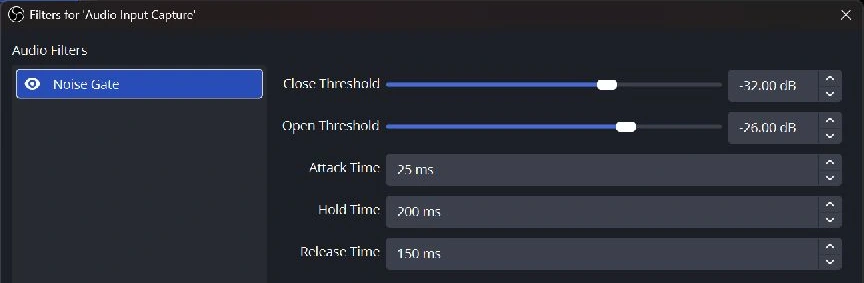
Use the eye icon beside the Noise Gate to bypass it temporarily. The values shown are OBS defaults. View full size - Record a short local sample: pause, start a quiet sentence, speak normally, then try the higher pitch or laugh that usually disappears. Keep levels comfortable and avoid clipping; louder is not the goal.
- Play the saved file. If the words are complete, enable one cleanup filter and repeat exactly the same passage. Continue one filter at a time until the problem returns.
- If the unfiltered recording still loses words, leave cleanup bypassed while checking the route. Compare with VoiceLala’s preview, confirm the selected virtual device, and check any microphone or headset processing before adding more OBS filters.
This comparison identifies a next check on your own setup. It does not establish that every cut-out is caused by a noise filter, or that a clear headphone preview guarantees clear recording output.
Use the first failing stage to choose your next check
| What you hear | What it tells you | Next check |
|---|---|---|
| VoiceLala preview already cuts words | The problem is audible before the OBS recording comparison. | Check the physical input, voice processing, and any upstream microphone software. |
| Preview is clear; OBS recording cuts words with cleanup bypassed | The route from preview to saved recording still needs diagnosis. | Check the selected virtual microphone, capture source, and output path before tuning a gate. |
| Unfiltered recording is clear; adding one filter removes words | That filter or its interaction with the current chain is a useful lead. | Retest its threshold, timing, or suppression method on the same changed voice. |
If you are checking an isolated voice track, make sure your player is playing that track. The OBS separate audio tracks guide explains how source assignments and playback selection affect what you hear.
Separate noise suppression from a closing gate
OBS Noise Suppression targets mild background noise. Strong processing can affect wanted sound too. If bypassing suppression restores missing speech, compare a less aggressive setting where available, a different method, or no suppression after reducing room noise.
The documented Suppression Level control applies to Speex. Moving it toward 0 dB reduces that processing. Do not assume a tutorial’s Speex slider also exists for RNNoise, or that another method will preserve every character voice. Record the result rather than judging silence alone.
A gate has a different job: it closes when the signal is quiet. Listen for the first syllable after a pause and the tail of a soft word. For a lost beginning, check the opening threshold and attack; for a lost ending, check the closing threshold, hold, and release. Change one control, then repeat the same line.
Set thresholds around your changed voice
The OBS Noise Gate reference places the closing threshold above room noise and the opening threshold below speech. Measure those levels with your selected voice and input gain. A setting copied from someone’s normal voice can close on your quieter character delivery.
Illustrative example, not a preset: suppose background noise sits near −55 dB and the quietest words you want to retain reach −38 dB. An opening threshold around −44 dB and a closing threshold around −48 dB would sit between them. Test the actual words and transitions; these numbers are invented to show the relationship and are not measured VoiceLala results.
If wanted speech overlaps the noise level, a threshold cannot reliably separate them. Improve microphone position or reduce the noise source first. Avoid repeatedly raising the threshold until the room sounds silent but your words disappear.
An OBS Expander can soften the transition by reducing quiet audio rather than using a hard gate. Its threshold can still cut speech when set aggressively. Test it as an alternative to the gate before stacking both.
Run this listening checklist before streaming
Keep a short before-and-after recording for each voice you plan to use. Listen for these specific results:
- After silence: the first consonant and first syllable remain intact.
- Quiet delivery: the last word of a soft sentence remains understandable.
- Expressive delivery: a higher line, laugh, or excited reaction survives without sudden holes.
- With the game: speech remains complete when you restore the normal mix. If it is merely buried by the game, use the separate OBS audio ducking guide.
- After switching voices: repeat the quiet and expressive lines. Retune only if the new voice fails the check.
If a soundboard clip and speech arrive through the same virtual source, that source’s filters process their combined signal. Include a clip in the check if you use one; this guide does not assume a separate soundboard device or promise that speech cleanup will preserve every effect.
OBS voice cut-out questions
Why does my normal voice work but a changed voice cuts out?
The changed voice may reach the filter with different levels or sound characteristics. Compare both with OBS cleanup bypassed, then restore one filter at a time. Set thresholds using the quietest changed speech you need to keep. This is a diagnostic possibility, not proof that VoiceLala or OBS is the cause.
Should I turn up the compressor to recover missing words?
First locate the stage that removes them. Raising the level of audio after words have disappeared will not restore the missing detail. Keep the recording from clipping, isolate the relevant cleanup filter, and check complete speech before balancing the mix.
What if the cut-outs remain with noise filters bypassed?
Keep that result as your baseline. Confirm the virtual microphone with the virtual microphone guide, compare upstream processing, and note which recording and preview contain the issue. If asking for OBS help, include your version, selected devices, filter list, and steps that reproduce the cut-out.