Fix OBS audio sync for your changed voice
Record a short camera-and-voice test, measure which signal arrives first, then delay that source. Check the saved output again with your chosen voice effect enabled.
Choose the output you need to fix
This Windows guide assumes OBS already receives the VoiceLala virtual microphone. Keep one capture path for it and leave the raw microphone out of the mix. If there is no changed voice in the recording, start with the OBS voice changer setup.
| What happens | What to check | Next action |
|---|---|---|
| Voice leads or trails the picture by a similar amount | A repeatable offset between sources | Measure the gap and delay the earlier source. |
| The gap grows or suddenly changes | A timing problem that a fixed offset cannot track | Compare the start and end before adding more delay. |
| Headphones sound late; the recording lines up | A monitoring path different from the recorded output | Check monitoring separately; preserve the aligned mix. |
Keep headphones on during the test so speaker playback does not feed back into the microphone. A delayed headphone preview alone does not tell you what viewers receive.
Record a repeatable sync test
- Identify the Audio Input Capture source receiving the VoiceLala virtual microphone. Write down its name, current Sync Offset, and any existing camera delay before changing them.
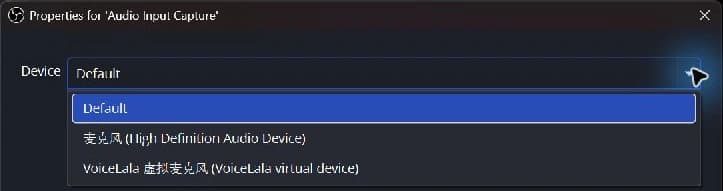
Choose the VoiceLaLa virtual microphone in the Device menu. View full size - Add your camera to the test scene and make a short local recording. Keep the same VoiceLala voice and filters you intend to use in the session. Put your hands in view and clap once, then say a short phrase with a visible mouth movement.
- Open the saved file in an editor that shows video frames and an audio waveform. Locate the frame where your hands meet and the corresponding clap sound. If voice processing or cleanup removes the clap, use the visible start of a clearly spoken “pa” and check the phrase in playback instead.
- Repeat the event a few times in the same recording. Note whether sound is consistently early or late. If the gap varies substantially, investigate that variation before choosing one offset.
- A raw-microphone test can help isolate processing, but finish with the changed microphone selected again. A timing value measured on another audio route is only a reference until the actual voice path passes the test.
Speech onset is less precise than a clear clap. Use the measurement as a starting point and confirm that full dialogue looks natural; this procedure is not a VoiceLala latency benchmark.
Measure the OBS audio sync offset
If your editor displays milliseconds, measure the time between the visual event and its sound. Otherwise, count the frames between them and use the frame rate of that recording:
Gap in milliseconds = frames apart × 1000 ÷ frames per second.
For example, four frames at exactly 60 fps is about 66.7 ms; four frames at 30 fps is about 133.3 ms. These are arithmetic examples, not recommended offsets or measured VoiceLala results. For a fractional frame rate, use the editor’s actual rate or time display.
Write both the size and direction of the gap: “voice about 67 ms early” is actionable; “67 ms delay” leaves the direction unclear. Work from the saved file rather than trying to time a moving OBS meter by eye.
Delay the source that arrives first
If sound arrives before the picture: right-click in the OBS Audio Mixer and open Advanced Audio Properties. Find the changed microphone by its source name and adjust Sync Offset. A positive value delays that audio. If you are starting from zero and speech is about 67 ms early, try roughly +67 ms, record again, and compare.
If an offset already exists, record its original value and adjust by the remaining measured gap. Do not silently add the full correction a second time. The OBS 33.0.1 audio control source confirms that this is a per-source field measured in milliseconds.
If the picture arrives before the sound: keep the microphone’s baseline noted, right-click the camera source, open Filters, and add Render Delay under Effect Filters. Set its Delay to the measured gap, then make another recording. The OBS Render Delay reference documents delaying the source image to align it with microphone audio.
Make one timing change at a time. This workflow delays the earlier signal rather than relying on a negative audio offset. Delaying picture or other audio aligns the recording; it does not make the voice-processing path respond faster in a live conversation.
Keep voice, camera, and gameplay together
Fix the camera-and-voice pair first, then restore gameplay and other sources. If you delay game video, check its associated game audio too: the visual event and its sound should still occur together. Delaying only the game sound can create a new mismatch.
| Source or pair | Test event | Record in your notes |
|---|---|---|
| Changed voice + camera | Visible clap or spoken phrase | Early/late gap, audio offset, camera delay |
| Game video + game audio | An action with a clear matching sound | Whether the pair remains aligned after changes |
| Complete session | Speech during normal gameplay | Voice, filters, scene, and final recording result |
Record another sample after switching to a different voice or changing filters. Keep the value only if the new sample still lines up. For editing workflows, separate voice and game tracks make later adjustments easier; track separation itself does not correct timing.
Check for drift before adding another offset
Repeat the same visible-and-audible event near the beginning and later in a recording long enough to reproduce the problem. A constant correction can align a stable gap. It cannot follow a gap that keeps growing or jumps unpredictably.
Compare a simple camera-and-microphone scene with your normal scene. Keep notes about when the change appears, which devices and filters are active, and whether it affects the saved file, monitoring, or only the live delivery. Inspect OBS’s current log for timing or buffering warnings before changing several device settings at once.
If only headphones are late, return to the OBS monitoring and routing checks. If words disappear rather than arriving late, follow the separate mic cut-out guide. These observations point to different next checks.
OBS audio sync questions
What is the best Sync Offset value for VoiceLala?
Measure your selected voice, camera, devices, and OBS scene. A number from another setup can move your audio in the wrong direction. Keep the original settings and verify each change in a new recording.
Does a sync offset remove voice changer latency?
It adjusts the relative timing of captured sources in the output. It does not remove the processing time you experience while speaking or hearing yourself. Viewer lip sync and conversational responsiveness require separate checks.
Why does another guide suggest 200 ms?
Some instructions target specific hardware. Elgato’s linked guide uses about 200 ms for its legacy 4K60 S+ capture workflow and notes that the amount varies. That value is not a general OBS or VoiceLala preset.
- OBS: Render Delay image timing and platform support
- OBS 33.0.1: per-source Sync Offset control
- Elgato: source-delay steps and the legacy 4K60 S+ example