Lower game audio with OBS audio ducking
Add a Compressor filter to the game audio source, then select your changed microphone as its Sidechain/Ducking Source. OBS can reduce the captured game sound while you speak.
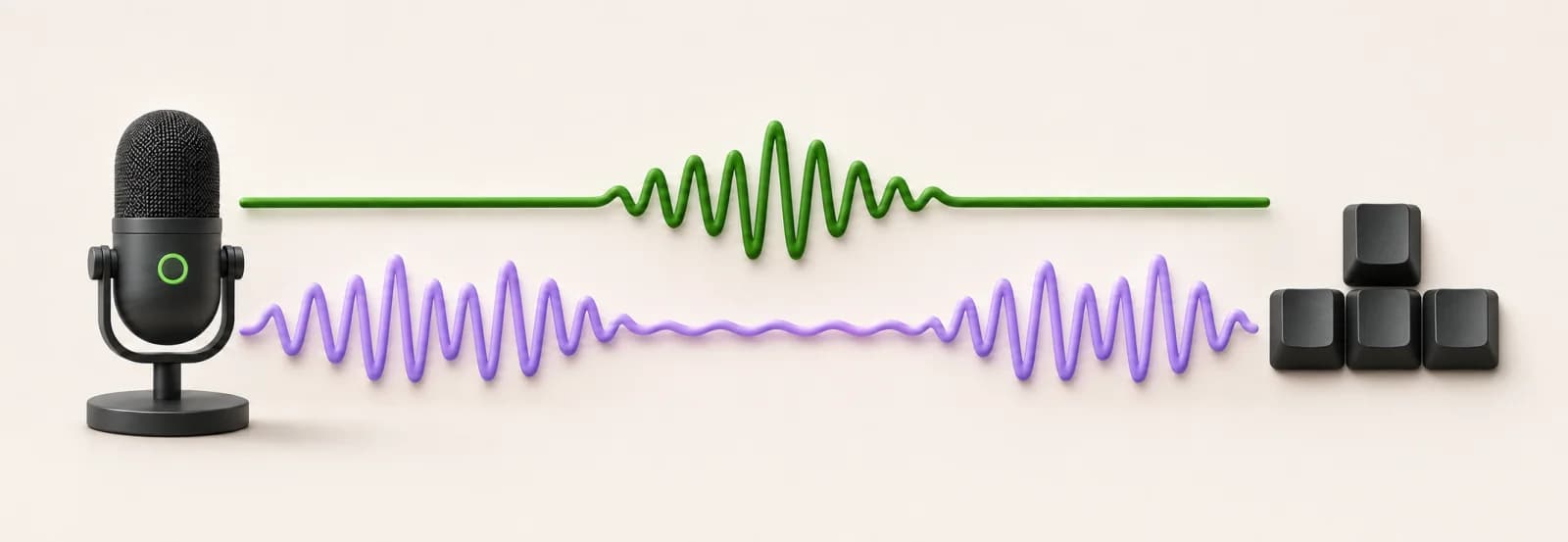
Give each source one job
For this Windows workflow, first complete the VoiceLala OBS setup. Confirm that OBS receives changed speech and game sound independently. Use the source names below to make the routing easy to check.
- Changed voice: an Audio Input Capture source receiving the VoiceLala virtual microphone. This source triggers the level reduction.
- Game audio: the game sound captured by OBS. This source carries the Compressor filter and becomes quieter.
If one source already contains your voice and the game together, separate the inputs first. The separate voice and game recording guide explains the source layout. Keep each device on one capture path, so an unfiltered duplicate does not mask your changes.
Connect the OBS ducking trigger
- Play a game sound and find its moving meter in the OBS Audio Mixer. Open Filters for that Game audio source and add the built-in Compressor.
- In the Compressor, set Sidechain/Ducking Source to Changed voice, using the actual OBS source name that responds when you speak through VoiceLala.
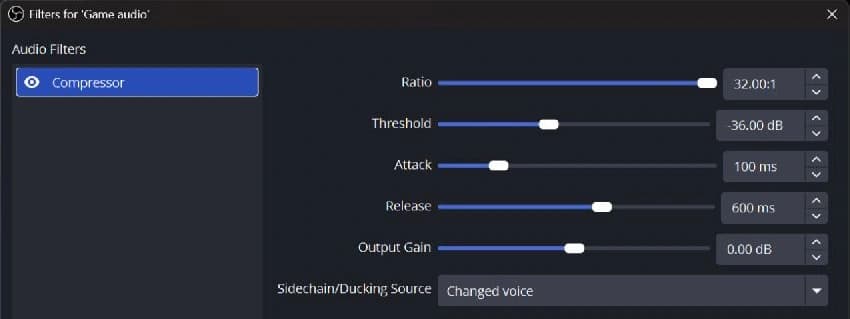
Add the Compressor to Game audio and choose Changed voice as its Sidechain/Ducking Source. View full size - Keep the changed voice available in your recording or stream mix. Check that speaking moves its meter, then compare the game sound with the Compressor enabled and disabled.
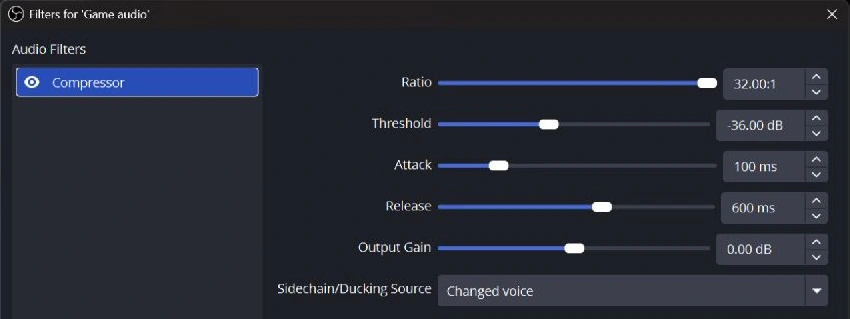
The sidechain list identifies OBS sources. Do not choose an inactive global Mic/Aux entry just because an older tutorial uses that name. The filter belongs on the audio you want to lower.
Use the official reference as a starting point
The OBS Compressor guide publishes these ducking reference values. Use them to establish the effect, then tune for your processed microphone level and preferred balance.
| Control | OBS reference |
|---|---|
| Ratio | 32:1 |
| Threshold | −36 dB |
| Attack | 100 ms |
| Release | 600 ms |
| Output Gain | 0 dB |
| Sidechain/Ducking Source | Your Changed voice source |
These are reference settings, rather than a universal voice preset. Start with a comfortable game level using its mixer fader, then listen for the amount and timing of the reduction during speech.
Tune against the voice your audience receives
Use one sentence at a steady microphone distance: “The next round starts when everyone is ready.” Try normal and quieter delivery with the selected voice active. An effect can change the signal level, so repeat the check after choosing another voice.
- Threshold: find a point where speech triggers ducking and pauses let the game return. Check quiet words as well as louder ones.
- Ratio: reduce it if the game disappears too strongly beneath speech.
- Attack and release: adjust how the change starts and recovers. Compare the first word and the gaps between phrases; change one control at a time.
A limiter controls peaks; it does not identify when your commentary needs room. Set the basic voice/game balance before adding more processing.
Run a four-pass recording check
Record a short local sample and listen to the saved mix. Keep the game passage and speaking distance similar between passes so the comparison is useful.
- Game only: stay quiet and confirm the background has a comfortable level without unintended dips.
- Game plus changed speech: say the test sentence, pause, and listen for the game to lower and recover.
- Effect change: try another intended voice, then repeat the sentence. Check whether its level still triggers the behavior you want.
- Filter bypass: temporarily disable this Compressor, repeat the same passage, and compare. Re-enable it before your final check.
Also try a soundboard cue if you plan to use one. If effects share the same virtual microphone signal, they can trigger the same ducking. Decide whether that fits the segment before going live.
Find why ducking is not working
The game never lowers: check the selected sidechain source and whether its meter moves during speech. Then confirm the game actually passes through the source carrying the filter. A second Desktop Audio capture can still carry an unchanged copy.
The game stays quiet: listen to the trigger during a pause. Background noise or a shared effect can keep it active; compare the trigger level with your threshold before making the ratio stronger.
The voice becomes quieter too: inspect where the Compressor is attached. Filtering a combined voice/game mix lowers both. Return to separate source roles before tuning the controls.
The recording lacks the voice: solve microphone capture, mute state, and recording-track selection first. Ducking is a balance control; the recording track checklist covers missing or wrongly selected tracks.
OBS audio ducking questions
Should I select my physical microphone as the sidechain?
For this setup, select the OBS source receiving your changed VoiceLala output. Its activity matches the processed signal you are checking. The dropdown uses OBS source names, so confirm the matching meter instead of relying on a device label.
Will it also change the game volume in my headphones?
The filter acts on the audio source inside OBS. Your ordinary game playback is a different listening path. Use a saved recording to assess the audience mix; local monitoring alone does not establish what the recording contains.
Can music duck separately from the game?
Capture music and the game as independent OBS sources if you need independent processing. A filter on a shared Desktop Audio source affects the sounds captured together there. See the official application-capture guide below for compatible Windows applications.
- OBS: Compressor controls and ducking reference
- OBS: audio sources and duplicate capture
- OBS: application audio capture
- OBS: recording tracks and playback