Use a soundboard in VRChat voice chat
On Windows, select the VoiceLala virtual microphone in VRChat. Test a short clip in VRChat’s microphone playback, then ask someone nearby in the same instance what they hear. Start with ordinary speech so you can tell whether a problem affects the clip or the whole input.
Choose the voice chat route
Use this setup when the VRChat app runs on Windows, either in desktop mode or through a PCVR connection. Keep your headset or headphones selected for playback. If you launch VRChat directly on a standalone Quest, use audio options available on the headset. The Windows virtual microphone belongs to the PC.
These clips enter VRChat through voice chat. Avatar and world sounds have separate controls. Start in a quiet instance with a willing listener, pick one short clip you have permission to play, and keep the level comfortable. Check the VRChat Community Guidelines and the instance’s rules before using clips in a group.
Send a clip through the VoiceLala input
- Open VoiceLala, select the mic you speak into, and confirm speech registers. In Sounds, preview a short cue and identify its stop control. Keep this same clip for the first comparisons.
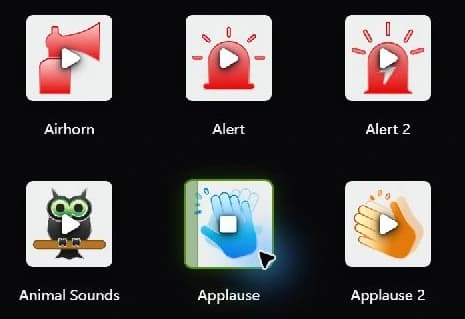
Select the square on the active sound tile to stop playback. View full size - Keep VoiceLala running. In VRChat’s Audio & Voice settings, choose the VoiceLala virtual microphone under Microphone → Change Device where shown. Leave your playback on your headset.
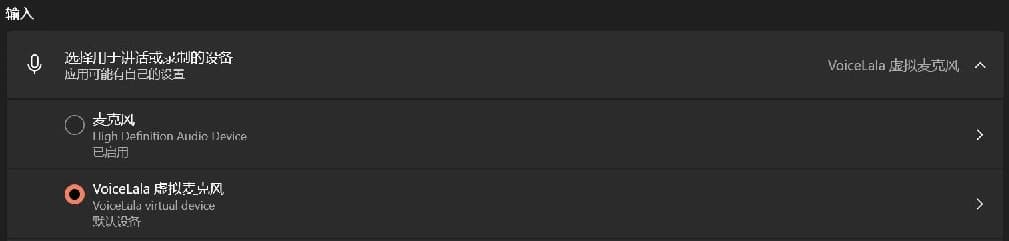
Under Windows Settings → System → Sound → Input, select the VoiceLaLa virtual microphone. View full size - Check the microphone icon and your Microphone Behaviour setting. If you use push-to-talk, hold your assigned talk control throughout the cue when testing with another player.
The Windows screenshot shows how the virtual mic appears in the system input list. Select it inside VRChat for this setup.
Compare VRChat playback and what a friend hears
- In the VRChat microphone settings, use Test Microphone where available. In the same test, say one short line, leave a pause and play the cue, then say a second line. Listen to the result and note whether both lines and the complete cue are present.
- Ask a willing player nearby to listen at a fixed position in the same instance. Repeat the same sequence in live voice chat. Ask which parts they heard and whether the clip began late, faded early, or covered your words.
- If Test Microphone is unavailable, record the VoiceLala virtual input with a Windows recorder that can select it, then do the live listener check. Keep the intended device selected in VRChat.
The VRChat settings reference describes microphone test playback. A local sample helps narrow down the problem, and the listener checks delivery in the live instance.
Find where a soundboard clip disappears
| What you hear | What to test next |
|---|---|
| The play button produces no preview | Try a second clip in VoiceLala and confirm the selected listening output. |
| Speech passes, but the cue is missing from the VRChat sample | Record the VoiceLala virtual input. A missing cue there points you back to the soundboard route. |
| The virtual input captures the cue, but the live cue is clipped | Check push-to-talk timing and compare VRChat’s activation and noise controls one at a time. |
| Neither speech nor the cue reaches your listener | Check the voice route, mute and input selection before troubleshooting a sound effect. |
If speech also fails, use the VRChat microphone troubleshooting guide. It covers missing headset inputs and checks after reconnecting.
Retest clips that start late or fade out
If push-to-talk is enabled, open the mic before triggering the clip and release it after the clip ends. With a voice activation threshold, an effect with a quiet start may be harder to pick up. Compare a second, clearly audible cue at a comfortable level before increasing microphone gain.
If the Windows sample holds the whole clip, test one control in VRChat at a time with the same listener. Note the original values for Mic Activation Threshold and Noise Suppression. Compare a small threshold change, then restore it before testing Noise Suppression separately if needed. Listen for room noise and speech changes as well as the clip. Keep the settings that suit the conversation and restore any change that did not help. See VRChat’s Audio & Voice settings reference.
Check your trigger before joining a group
Start with the play button in VoiceLala. If you use a shortcut available in your version, test it with VRChat focused while keeping the microphone route fixed. Compare it with the play button. A cue that plays by click but never starts by shortcut points to the trigger or a binding conflict.
Practice stopping the sound, then let your listener check that the cue sits at a comfortable level beside speech. The soundboard setup guide has more tips for choosing and balancing clips.
VRChat soundboard FAQ
Why can I hear the clip but nobody in VRChat can?
Your headphones can play the sound while VRChat receives a different input. Check the VRChat microphone selection and use the same short clip in Test Microphone where offered. Ask a listener to check live voice after the local sample works.
Can I use this Windows soundboard on standalone Quest?
These steps require the VRChat app to run on Windows. A Quest connected for PCVR can use the Windows route when VRChat runs on the PC. The native Quest app uses audio inputs available on the headset.
- VRChat Wiki: microphone behaviour, playback test, and audio controls
- VRChat: PC and standalone microphone troubleshooting
- VRChat: Community Guidelines