Fix a VRChat microphone that is not working
Start with the microphone VRChat should hear. On a Windows PC, test that input in Windows, select it in VRChat, and confirm someone can hear you. Add your virtual microphone after the physical input works.
Find the first place your mic stops
Use the same short sentence for each check. Keep the microphone distance and speaking level steady. If a check fails, inspect that part of the route before changing the next one.
| What you observe | What to check next |
|---|---|
| The headset mic works in standalone VRChat but its input is silent or missing on the PC | Check the headset link and confirm which recording input Windows actually receives. |
| Windows records your mic but VRChat is silent or hears a different device | Select the same input in VRChat and check mute, talk mode, and activation threshold. |
| VRChat hears the raw mic but loses it when you switch to a changed voice | Check the VoiceLala input and test the virtual mic in Windows before selecting it in VRChat. |
| The app shows activity but another player hears nothing | Test with one willing listener nearby in the same instance and verify both players’ voice settings. |
Check where VRChat is running
If you launch VRChat directly from the Quest library and play without a PC connection, you are using the standalone app. It uses the headset’s local microphone access. Test the microphone in another headset app and follow the Quest steps in VRChat’s microphone help.
In PCVR, VRChat runs on Windows and the headset connects to the PC. Your headset may work in standalone mode even if the PC connection presents a different input or does not carry the headset mic. Connect the headset first and identify its recording input in Windows. The rest of this guide applies to the Windows app in desktop mode and PCVR.
Test the intended microphone in Windows
- Open Settings → System → Sound. Under Input, select the exact microphone you want to use. For PCVR, this may be an input provided by your headset connection. Read the device name and speak into the intended mic while watching its level.
- Where available, open its properties and use Start test, Stop test, and Play to listen to the sample. Alternatively, use a recorder that lets you choose the input. Confirm you recorded that device before proceeding.
- If the input is missing or silent after connecting the headset, check whether the headset or streaming app is sharing its microphone with the PC. Return to Windows and repeat the test. If Windows receives the mic but desktop apps cannot use it, check Microphone access and desktop app access in Windows privacy settings.
Keep headphone output unchanged during these checks. An audible game confirms the playback route only.
Select and unmute the input in VRChat
In the Windows VRChat app, open the Quick Menu and clear the mute state if the mic icon is crossed out. In Settings, use Audio & Voice → Microphone → Change Device where shown, and pick the same device that passed the Windows test. Check the current talk control if you use push-to-talk. The VRChat settings reference lists the device and microphone controls.
Say your test sentence at a normal level, then repeat it quietly. If speech activates only when loud, review the Mic Activation Threshold. It controls when speech opens the mic. Mic Output Volume controls outgoing level. Adjust one setting at a time and ask someone nearby in the same instance to confirm they can hear both samples.
If you use a multichannel audio interface, VRChat’s PC help says it picks up the first channel. Check where your mic appears before changing the level.
Add the VoiceLala virtual microphone
- With the raw microphone working, open VoiceLala and choose that physical or headset-provided input in its microphone menu. Speak the same sentence and check the input level.
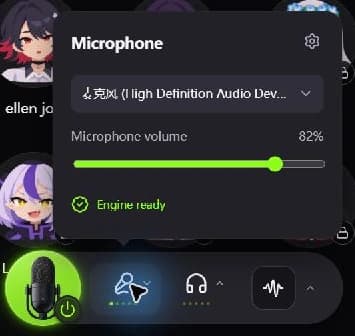
Open the microphone button in the bottom toolbar to choose your physical input. View full size - Keep VoiceLala running. Select its virtual microphone for a Windows input test where available, or in a recorder with device selection. Repeat the same sentence and listen back for the changed voice.
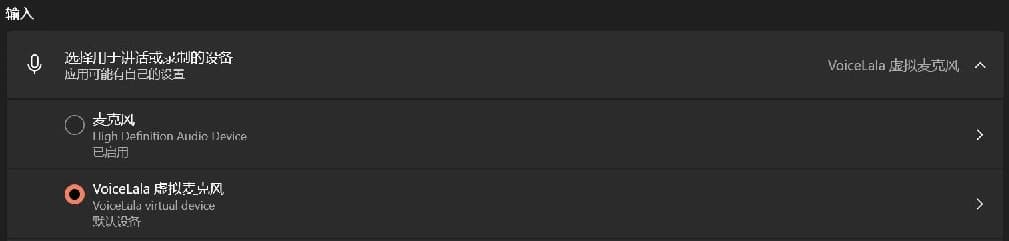
Under Windows Settings → System → Sound → Input, select the VoiceLaLa virtual microphone. View full size - Select the VoiceLala virtual microphone in VRChat and confirm the changed voice with your listener. If the virtual recording is silent too, return to the VoiceLala route. If the recording works and VRChat stays silent, revisit device selection and the talk control in VRChat.
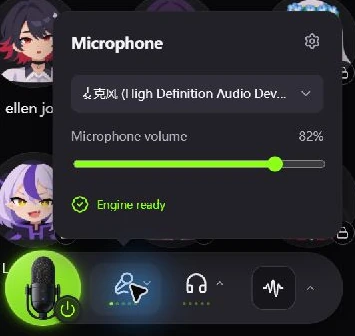
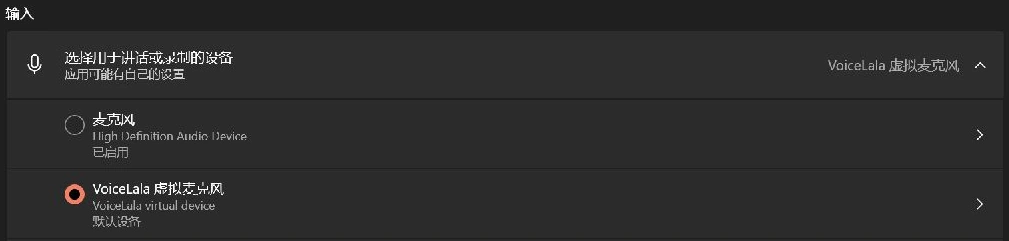
The virtual microphone steps apply to VRChat running on Windows. Restore your original Windows input if you changed the default for the recording test.
Retest after reconnecting the headset
If the mic stops after a reconnect, note the headset connection method, the selected Windows input, and the selected VRChat input before changing anything. Repeat the Windows test, then the VRChat listener check. A device that still appears by name can be silent, so test its signal again.
If you can use the same physical mic in desktop mode, repeat the baseline there to narrow the issue. When the two modes use different microphones, record their names separately. If your changed voice works only until you reconnect, use the virtual microphone guide to check the route again after the headset input is available.
VRChat microphone FAQ
Why does my mic work on Quest but go silent in PCVR?
Standalone VRChat uses the headset’s local mic. PCVR depends on the audio input Windows receives. Test the headset input in Windows after connecting it, then select the working device in VRChat.
Why does VRChat keep using my laptop microphone?
Compare the selected input in Windows, VRChat, and VoiceLala if open. Choose the intended microphone by name where the app allows it, then confirm with a short recording and a listener. Recheck those selections after reconnecting the headset.
Can standalone VRChat select the VoiceLala Windows virtual microphone?
The standalone Quest app uses inputs available on the headset. The steps for selecting the VoiceLala virtual microphone in this guide require VRChat running on Windows, including PCVR.
- VRChat: microphone checks for Quest, desktop, and PCVR
- VRChat Wiki: audio and microphone settings
- Microsoft: set up and test microphones in Windows
- Microsoft: microphone access for apps